YouTube to MP3 Download: How to Save Audio Easily
Learn how YouTube to MP3 downloads work, choose audio quality, solve common issues, and understand copyright rules before saving audio.
Sometimes you find a video on YouTube that you want to listen to again later. It might be a tutorial, an interview, a lecture, or music from a creator who allows downloads. If you only need the sound, an MP3 file can be more convenient than keeping the entire video.
A YouTube to MP3 download involves obtaining an audio file from a video when the content and download method permit it. MP3 is popular because it works with many phones, computers, music players, and car audio systems.
In this guide, we will explain how the process works, what to check before saving a file, and how to handle common download problems.
What Is a YouTube to MP3 Download?
A YouTube to MP3 download means saving audio from a YouTube video as an MP3 file.
A video usually contains both visual and audio information. If you only need the sound, an audio file may be more practical because you do not need to keep the video portion.
For example, you might want an audio copy of your own recorded lecture or a tutorial that its creator has made available for download.
MP3 is a compressed audio format. It helps keep file sizes manageable while providing sound quality that suits many everyday listening needs.
However, downloading a video and converting its audio are not always the same process. The available options depend on the source, the tool, and the permissions associated with the content.
How to Save YouTube Audio as an MP3
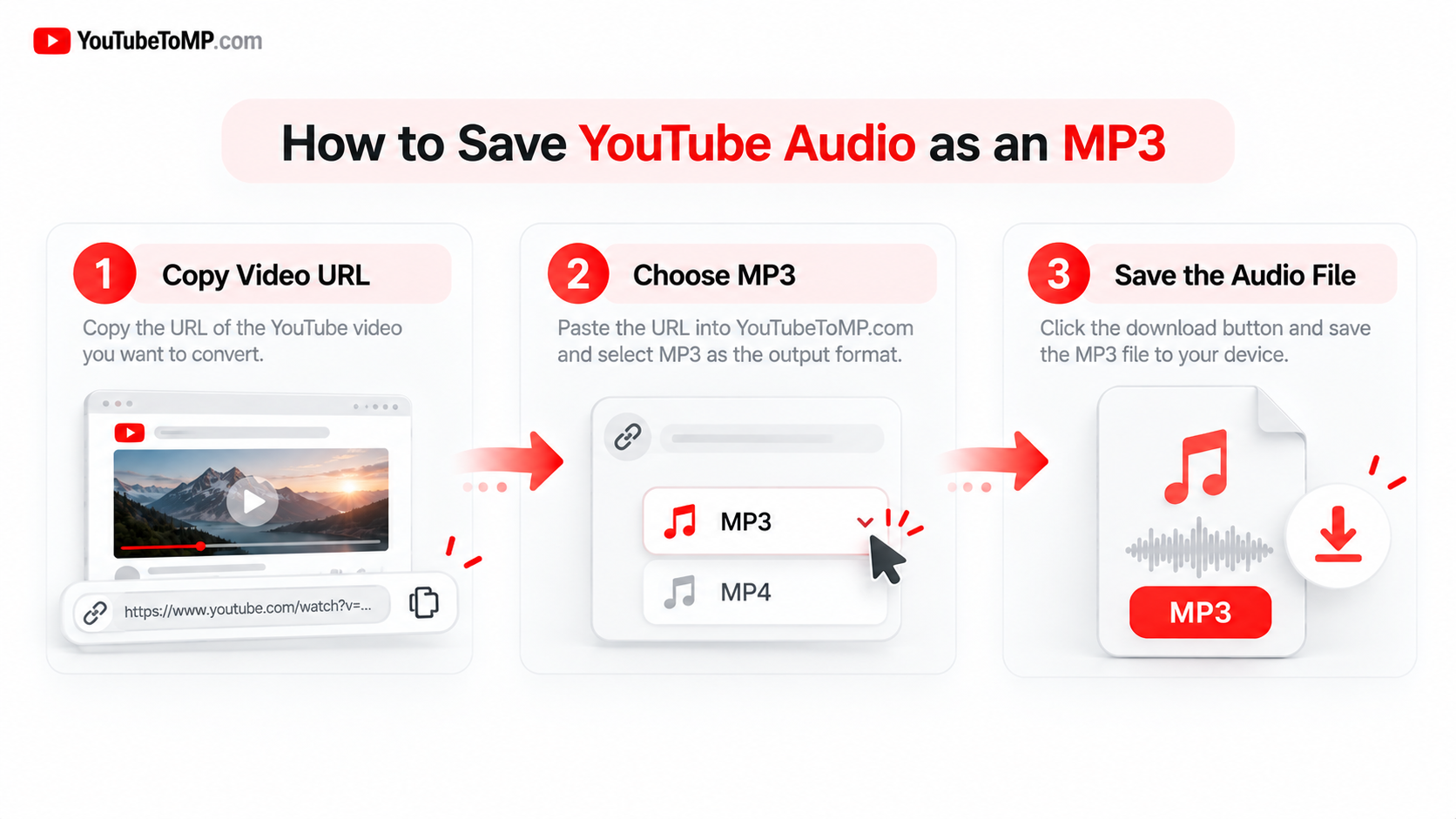
If you own the content or have permission to download it, the process generally involves a few steps.
Step 1: Find the Video
Open YouTube and locate the video you want to use.
Before proceeding, check whether the creator permits downloading or whether another valid legal basis allows you to save the content.
Step 2: Copy the Video Link
Copy the video URL from your browser or use the available sharing options.
Make sure the link is complete and points to the correct video. An incorrect URL may cause a conversion tool to reject the request.
Step 3: Choose a Suitable Tool
Use an appropriate tool or an authorised download option for the content.
YouTubeToMP offers a browser-based interface for processing supported video URLs into available formats. Features and supported content can vary, so check the options shown on the website.
Step 4: Select MP3 if Available
If the authorised download or conversion method supports MP3, select it as the output format.
MP3 is a practical option when you want an audio file that can be played on a wide range of devices.
Step 5: Process and Save the File
Follow the on-screen instructions and wait for the process to finish. If an MP3 file is created successfully and the download is permitted, use the available download option to save it to your device.
Check your browser's Downloads folder if you cannot immediately find the file.
How to Download YouTube Audio on Different Devices
The exact steps can differ depending on your device and the service you use.
On Android
You can open supported websites in a mobile browser and follow their instructions. If you download an authorised audio file, it may appear in your Downloads folder.
Check your browser settings if the file does not appear where expected.
On iPhone
Safari and other supported browsers can save eligible files, although the available options may differ.
Depending on the download method, the file may be stored in the Files app rather than the Music app. Saving an audio file does not automatically add it to your music library.
On Windows or Mac
A desktop browser gives you more screen space to review file options and manage downloads.
For content you own or are authorised to save, you can download the available source file and use compatible audio software to create an MP3 if needed.
For Offline Listening Inside YouTube
If your main goal is listening without an internet connection, YouTube's official offline features may be more suitable. Where available, YouTube Premium and YouTube Music Premium allow eligible content to be saved for offline playback within their supported services.
These downloads are not the same as standalone MP3 files that you can freely transfer to other music players.
How to Choose the Right MP3 Quality
MP3 quality is commonly described using a bitrate measured in kilobits per second (kbps).
Here is a quick guide:
| Bitrate | General use |
|---|---|
| 128 kbps | Smaller files and casual listening |
| 192 kbps | A balance between file size and quality |
| 256 kbps | Higher-bitrate listening |
| 320 kbps | A common high-bitrate MP3 setting |
A higher bitrate generally uses more data per second, which can increase the file size. However, it does not guarantee better sound in every situation.
The original recording matters. If the source audio has already lost detail through compression, converting it to 320 kbps cannot restore that missing information.
Choose a setting that suits your listening needs and the quality of the original source.
Common YouTube MP3 Download Problems
A download may not always work on the first attempt. Here are a few things to check.
The Link Does Not Work
Check that you copied the complete URL and that the video is available. Some tools support only specific types of links.
The Download Is Taking Too Long
Processing time can depend on the file length, internet connection, source availability, and the service's workload. Give the process time to finish before trying again.
The Audio File Will Not Play
Confirm that the file downloaded completely and that its format matches what your player supports. If necessary, try a compatible audio player.
The Sound Quality Is Poor
The original audio may be low quality, or the conversion may have introduced additional compression. A higher bitrate setting cannot recreate detail that was missing from the source.
The Website Shows Unexpected Pop-Ups
Be careful with misleading download buttons, unfamiliar redirects, and requests to install software you did not ask for. Do not provide your account password or install an unknown file just to obtain an audio download.
How YouTubeToMP Can Help
YouTubeToMP is a browser-based tool designed to make processing supported video URLs straightforward. Users can review the available format options and follow the website's instructions without needing to set up a complicated desktop workflow.
If you need an MP3 from content you are authorised to save, visit the YouTubeToMP website to check its current features and supported formats.
The tool is intended to make the technical process easier. It does not grant permission to download copyrighted content, and available features may vary.
Copyright and Responsible Downloading
Before saving audio from YouTube, make sure you have the right to download and use it.
You may be able to download your own recordings, content provided directly by its creator, or works offered under a licence that permits your intended use. Other situations may require permission from the relevant rights holder.
Keep these points in mind:
- Publicly available does not automatically mean free to download.
- Read the terms of any Creative Commons licence before using the content.
- Do not assume that personal use makes every download lawful.
- Check the rules before sharing, redistributing, or using audio commercially.
- Remember that copyright laws and platform terms can differ.
YouTube's own copyright guidance explains that creators generally hold rights in their original work and that permission, suitable licences, public-domain status, or an applicable copyright exception may affect how content can be used.
For more information, read YouTube's official copyright guidance.
YouTubeToMP is a technical tool, not a copyright licence. Users are responsible for making sure their downloads and intended use are permitted.
Frequently Asked Questions
Can I download YouTube audio as MP3?
Some tools can process supported video URLs into MP3 files. Whether you may download a particular video depends on the applicable permissions, law, and platform terms.
Is a YouTube to MP3 download free?
Some tools offer free features, while others have limits or paid options. Check the service's current terms before using it.
Can I save YouTube audio on my phone?
You can save authorised audio files to many phones. The steps and storage location depend on your device, browser, and download method.
Does 320 kbps always provide the best sound?
Not necessarily. A high bitrate can use more data, but it cannot restore detail missing from the original audio. Source quality remains important.
Can I use YouTube Premium to get an MP3 file?
YouTube Premium offers offline playback for eligible content within supported YouTube experiences. Those downloads are not ordinary MP3 files that can be freely exported to other players.
Is downloading YouTube music for personal use always legal?
No. Personal use alone does not automatically make a download lawful. Check the relevant copyright rules, permissions, and platform terms.
Final Thoughts
A YouTube to MP3 download can be useful when you need audio without the video. MP3 files work with many devices, and the format offers a practical balance between sound quality and storage needs.
Before saving a file, check that the content is available for authorised download, choose a suitable format, and use a trusted method. If you only need offline playback inside YouTube, the platform's own offline features may be a better fit.
YouTubeToMP provides a browser-based way to process supported content, while responsible downloading starts with respecting the rights of creators.