How to Convert YouTube to MP3: A Simple Step-by-Step Guide
Learn how to convert YouTube to MP3, choose audio quality, fix common conversion issues, and understand copyright and responsible use.
Sometimes you find a useful video on YouTube but only need its audio. It could be a tutorial, a lecture, an interview, or a recording you created yourself. In these situations, an MP3 file can be more convenient than keeping the entire video.
Converting a video to MP3 means extracting its audio and saving it in a format that works with many music players, phones, and computers.
In this guide, you will learn how the conversion process works, what to consider when choosing an audio format, and how to avoid common problems.
What Does Converting YouTube to MP3 Mean?
MP3 is a popular digital audio format. It stores sound in a compressed file, which helps keep file sizes manageable.
A YouTube video may contain both picture and sound. When a compatible conversion tool processes a video, it extracts the audio and creates an MP3 file.
For example, you might have a video containing a spoken tutorial. If you only need to listen to the explanation, an audio file may be more practical than a video.
The important thing to remember is that converting a file changes its format. It does not automatically improve the original sound quality or grant permission to download copyrighted content.
How to Convert YouTube to MP3
The basic process is straightforward when you are working with content you own or are otherwise authorised to download.
Step 1: Find the Video
Open YouTube and locate the video whose audio you want to save.
Check that you have permission to download or convert it and that your intended use is allowed.
Step 2: Copy the Video URL
Copy the video's web address from your browser or the available sharing options.
Make sure you copy the correct link so the tool can identify the intended video.
Step 3: Open a Compatible Conversion Tool
Visit a browser-based conversion tool that supports the content and format you need.
YouTubeToMP provides a web-based interface for processing supported video URLs into available formats. The options may depend on the tool's current features and the content being processed.
Step 4: Paste the URL
Place the copied video URL into the tool's input field.
Check the link before continuing. An incorrect or incomplete URL may prevent the conversion from working.
Step 5: Choose MP3
If MP3 is available, select it as the output format.
MP3 is widely supported, so it can be a practical choice when you want an audio file that works across different devices.
Step 6: Process and Save the File
Start the conversion and wait for the process to finish. If the tool successfully creates an MP3 file, use its download option to save the file to your device, provided the download is permitted.
The file will usually appear in your browser's download location or the folder you selected.
What Is the Best MP3 Quality?
The best setting depends on the source audio and how you plan to use the file.
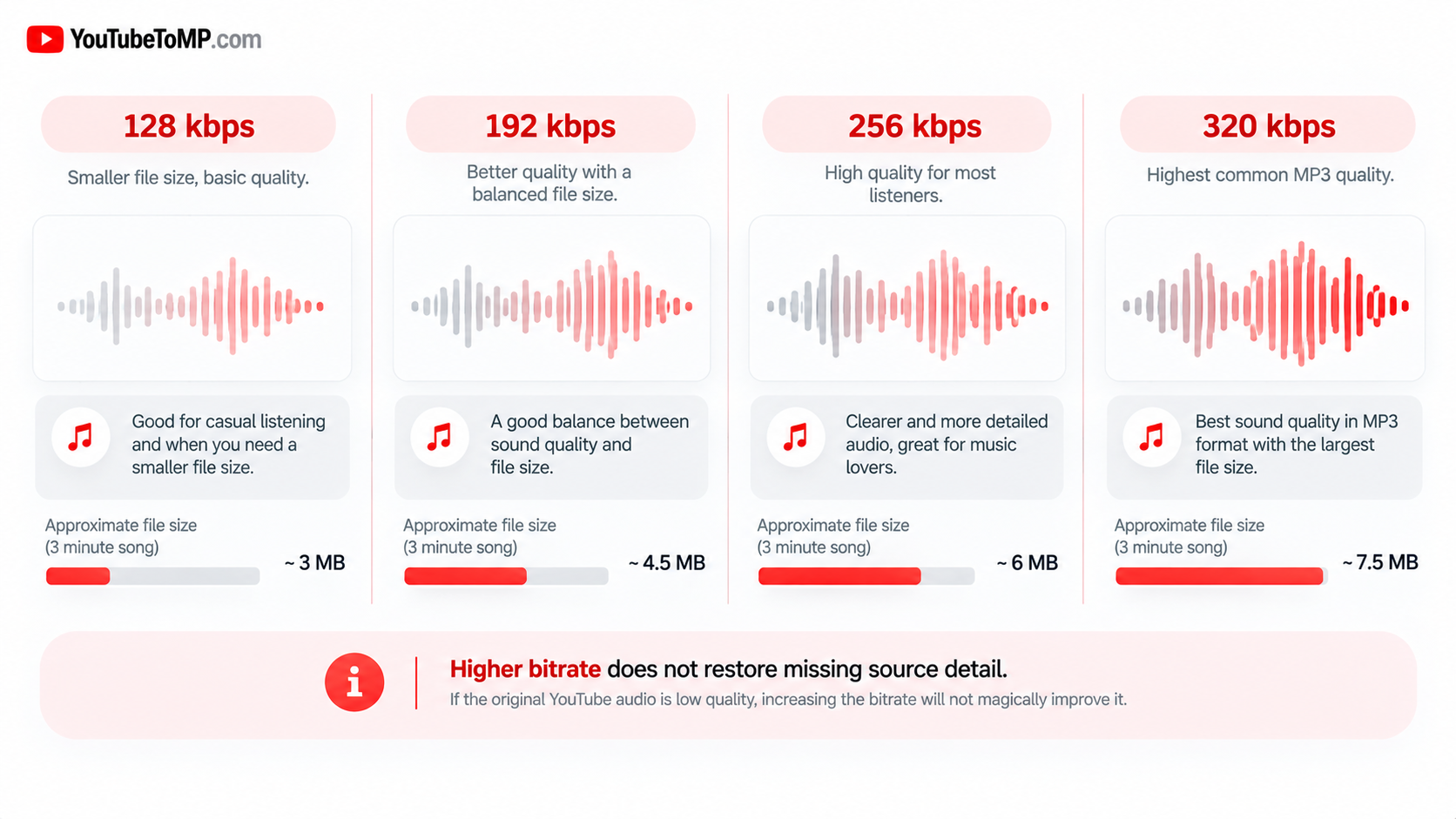
You may see audio quality options measured in kilobits per second, or kbps. This number describes the amount of data used to represent each second of audio.
Here is a simple comparison:
| Bitrate | General use |
|---|---|
| 128 kbps | Smaller files and casual listening |
| 192 kbps | A balance between size and quality |
| 256 kbps | Higher-quality listening |
| 320 kbps | A common high-bitrate MP3 option |
These figures describe MP3 encoding settings, not a guarantee of the final sound quality. The source audio, conversion method, and whether the audio has already been compressed all matter.
A 320 kbps file cannot restore detail that is missing from a lower-quality source. A larger file does not always sound better.
For everyday listening, choose a setting that meets your needs without creating unnecessarily large files.
Can You Convert YouTube to MP3 on a Phone?
Yes, browser-based tools can be accessed from many smartphones, although the available features and steps vary by device and service.
The general process is similar on a phone:
- Find the video you are authorised to save.
- Copy its URL.
- Open a compatible conversion tool in your browser.
- Paste the URL and select MP3 if available.
- Process the audio.
- Save the resulting file if permitted.
On Android, the file may appear in your Downloads folder. On an iPhone, its location depends on the browser and save options you use.
If a website does not work properly on your phone, try updating your browser or using a different supported browser.
MP3 vs. M4A: Which Format Should You Choose?
MP3 and M4A are both used for digital audio, but they are not identical.
MP3 is a widely supported format that works with many older and newer devices.
M4A is a container commonly used for AAC-encoded audio and can provide good audio quality at a given file size. Actual results depend on the codec and encoding settings.
Choose MP3 when broad compatibility is your main concern. Consider M4A when your intended player supports it and the available encoding suits your needs.
Neither format automatically guarantees better audio. The source and encoding settings make a difference.
Common YouTube-to-MP3 Conversion Problems
Sometimes a conversion tool does not work as expected. Here are a few common issues and what you can check.
The Video URL Is Not Accepted
Make sure you copied the full, correct URL. Some tools support only certain video links or content types.
The Conversion Takes Too Long
Processing time can depend on the source, file length, internet connection, and service load. Wait for the process to finish before trying again.
The Download Does Not Start
Check whether your browser blocked the download or asked you to confirm it. You can also check your device's Downloads folder.
The Audio Quality Is Poor
The original recording may have low-quality audio. Try to use a suitable source rather than assuming that a higher output bitrate will improve it.
The Tool Does Not Support the Video
Not every service can process every URL. A video may be unavailable, restricted, or unsupported by the tool. Use an authorised alternative source if necessary.
How YouTubeToMP Can Help
YouTubeToMP is a browser-based tool designed to make processing supported video URLs straightforward. Users can check the available conversion options, select a suitable format when supported, and follow the on-screen steps.
The aim is to provide a simple experience without requiring a complicated software setup. Before using any online converter, make sure the content is eligible for processing and that your intended download is permitted.
If you need to learn more about the available features, visit the YouTubeToMP website.
Copyright and Responsible Use
Before converting a YouTube video to MP3, check whether you have the right to download and save its audio.
You may have permission to convert your own recording or content that the rights holder has authorised you to download. Some works are also offered under licences that permit particular uses, subject to their conditions.
However, being able to watch a video online does not automatically give you permission to make a separate audio copy. YouTube's terms and applicable copyright laws may restrict downloading or converting content.
Keep these points in mind:
- Download content you own, have permission to use, or are otherwise legally allowed to save.
- Read any licence conditions before using Creative Commons or public-domain material.
- Do not assume that personal use makes every download lawful.
- Get the appropriate rights before redistributing audio or using it commercially.
YouTubeToMP is a technical tool, not a source of copyright permission. Users are responsible for ensuring that their downloads and intended uses comply with applicable rules.
Frequently Asked Questions
Is converting YouTube to MP3 free?
Some browser-based conversion tools offer free features. Availability, limitations, and supported formats vary between services.
Does converting a video to MP3 reduce its size?
It often does because an audio file does not contain the video's visual data. The final file size depends on the audio length, bitrate, and encoding method.
Does 320 kbps always give the best quality?
No. It is a high-bitrate MP3 setting, but it cannot restore audio detail missing from the original source. The source quality and encoding process still matter.
Can I convert a YouTube video to MP3 without installing software?
Some browser-based tools work without installing a separate application. You will still need to ensure that the tool supports the content and that the conversion is permitted.
Can I convert YouTube to MP3 on Windows or Mac?
You can use a compatible browser-based service on either operating system. The available features depend on the service and the content.
Is it legal to convert every YouTube video to MP3?
No. Permission, copyright law, the type of content, and platform terms can affect whether a particular download is allowed. Check the relevant rules before converting.
Final Thoughts
Converting a video to MP3 can be useful when you need audio without the visual part of a recording. The process usually involves copying a supported URL, selecting MP3, processing the audio, and saving the resulting file when permitted.
Choose a suitable audio quality, check that the file works on your device, and remember that a higher bitrate cannot repair poor source audio.
YouTubeToMP provides a browser-based way to process supported content. Always check your rights before downloading or converting a video, and use audio only in ways you are permitted to.