How to Extract Audio From a YouTube Video
You find a useful explanation in a YouTube video, but you don't necessarily want to watch the whole recording every time you need it. Perhaps it's a tutorial, an interview, a lecture, or a presentation. The information is in the speaker's voice, and having a separate audio file would make it easier to listen while travelling, working, or reviewing your notes.
This is why people look for ways to extract audio from a YouTube video. Instead of keeping the visual part, they want an audio version that can be played separately on a phone, computer, or compatible media player.
The process is often described as YouTube to MP3 conversion, but the two terms are not quite identical. Audio extraction means separating sound from a video, while MP3 conversion means encoding that sound into a particular audio format. A conversion tool may perform both operations during one process.
There is another important difference when the source is YouTube. A video playing in a browser is not the same as a video file already stored on your device. The available options, platform rules, and content rights all matter before you decide how to create a separate audio recording.
Why YouTube Audio Is Different From a Video File on Your Computer?
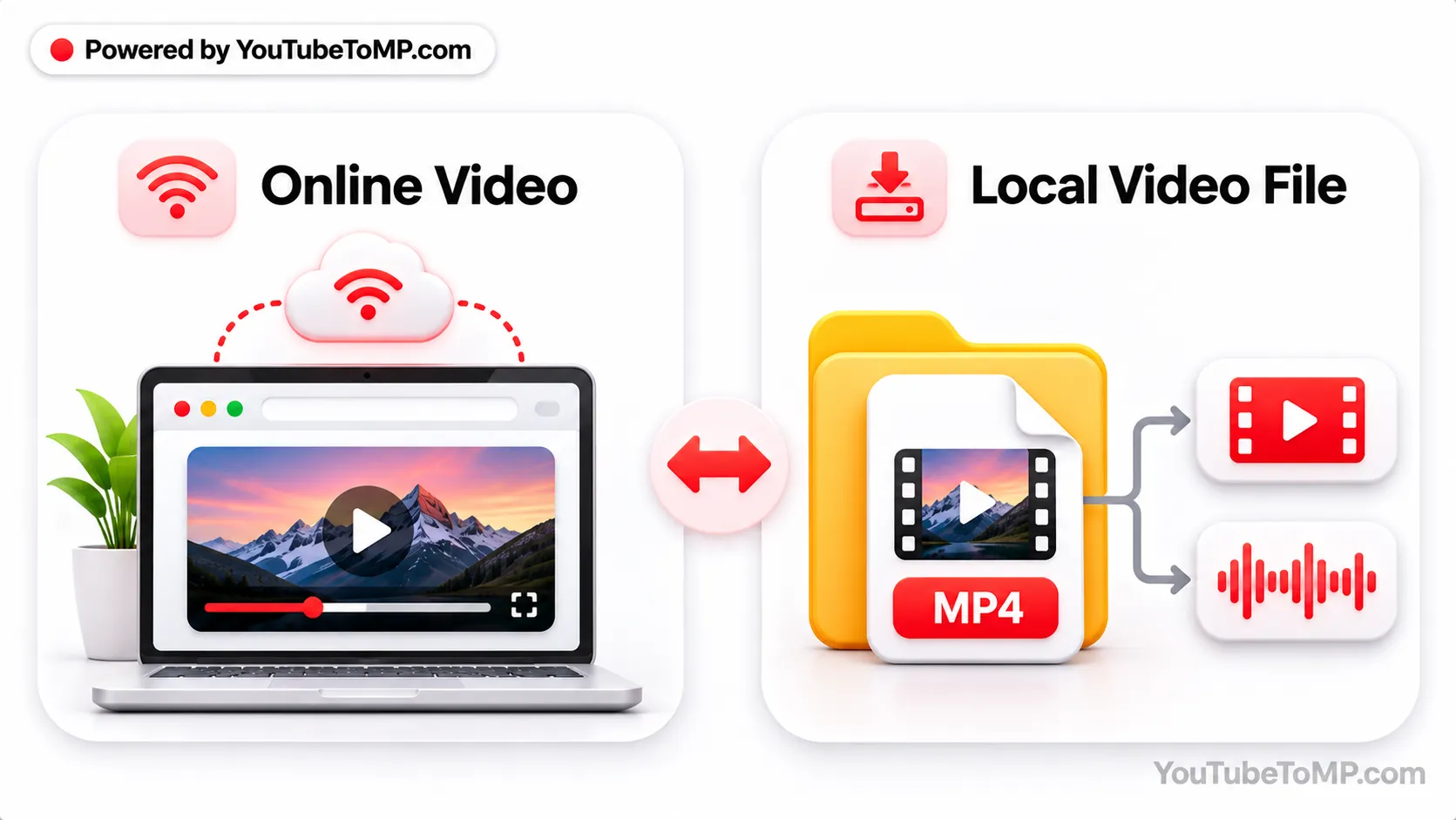
When you extract audio from an MP4 file saved on your computer, a media program can read the file directly. It can identify the audio track, separate it from the video stream, and export it into another format.
A YouTube video works differently. When you watch it, the platform delivers the content through its playback system. You are viewing or listening to a stream rather than automatically receiving a normal video file that you can open in an editing program.
This distinction is important because a browser's ability to play a video does not mean that the original media file is available as a regular download. YouTube also has its own features for offline viewing, and those are not the same as exporting an independent MP3.
For example, YouTube's offline downloads are designed to be played inside the YouTube app. Its Help Center explains that the app does not provide a way to download separate audio or MP3 files. YouTube also provides a download option for videos you have uploaded yourself through YouTube Studio. These options serve different purposes, so it helps to understand which one applies to your situation.
If you own the video or have permission from the relevant rights holder, you can use an appropriate source file or an authorized method to prepare an audio version. That gives you a clearer starting point than assuming every publicly viewable video can be downloaded as a separate file.
The Available Ways to Get an Audio Version
The most suitable approach depends on who owns the recording and whether you already have access to its original file.
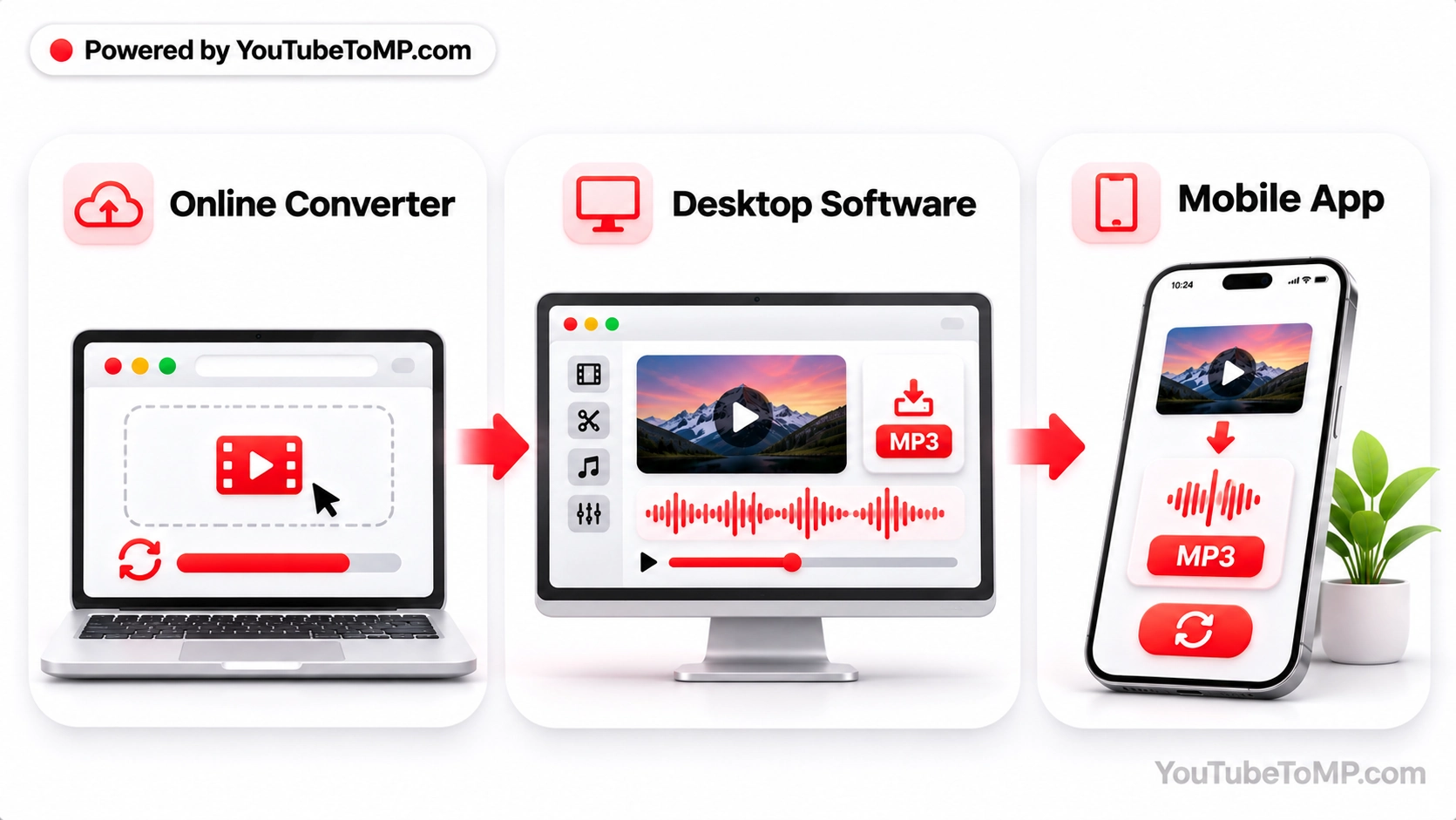
If the video is yours, YouTube Studio provides an official way to download your uploaded video. Once you have the MP4 file, you can use a compatible media converter or editing program to export the audio. This separates the process into two straightforward stages: obtaining your own video file and creating the audio version from it.
For someone who has an authorized copy of a recording, an online audio converter can make the second stage easier. You select the supported video file, choose an output format, and let the tool process it. The result is a separate audio file that can be saved on your device. This is convenient for occasional use because it does not require a full desktop editing setup.
Desktop software is another option, especially when you need more control. It may let you select a specific section, adjust the output settings, or work with a range of audio formats. This is useful for longer interviews, training recordings, and other material that needs editing before it is ready to use.
The distinction between these methods is not simply about which one is fastest. It is about whether you have the right to use the content, where the original file comes from, and how much control you need over the finished audio.
YouTube Premium offline viewing should not be confused with audio extraction either. Offline viewing is intended to let eligible users watch supported videos within YouTube. It does not turn the downloaded video into an independent MP3 file that can be moved freely between music players.
Why MP3 Is Commonly Used for YouTube Audio?
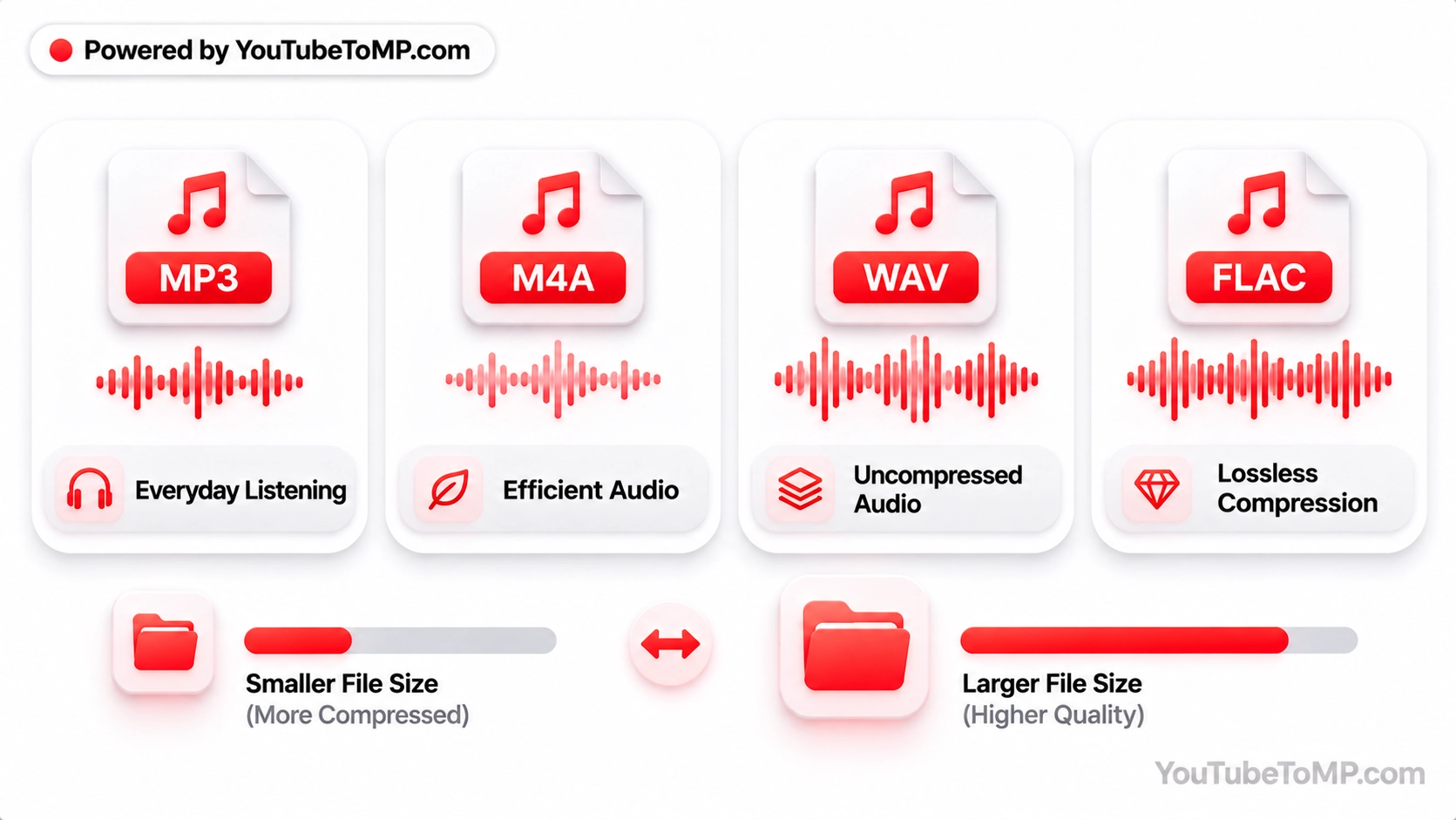
MP3 is popular because it is supported by most everyday devices. You can play it on a smartphone, laptop, desktop computer, car stereo, or many portable audio players without needing a specialized application.
Its smaller file size is another reason people choose it. MP3 uses lossy compression, which reduces the amount of data needed to store sound. This makes it practical for spoken recordings, interviews, lectures, and general listening.
However, MP3 is not the only option. M4A files commonly use AAC audio and can provide good quality at a relatively small size. WAV is often used when audio will be edited further because it can store uncompressed sound. FLAC offers lossless compression, which preserves the encoded audio data without the same quality loss associated with MP3.
The right choice depends on what you intend to do with the recording. If you want an easy-to-play file for everyday listening, MP3 is usually convenient. If you plan to work with the sound in an editing program, WAV or FLAC may be more appropriate.
It is also worth remembering that changing a file into MP3 does not automatically improve its sound. The quality of the source recording remains important, regardless of which format you select.
What Determines the Quality of Extracted Audio?
A common expectation is that choosing the highest available MP3 setting will always produce the best result. That is not necessarily true.
The original audio determines how much detail is available in the first place. If the speaker recorded the video with a clear microphone in a quiet room, the resulting audio may sound good. If the recording contains wind, background noise, distortion, or distant speech, conversion will not automatically correct those problems.
Bitrate is one factor that affects the output. MP3 settings such as 128 kbps, 192 kbps, and 320 kbps represent different amounts of data used to encode each second of audio. Higher bitrates generally preserve more information during lossy encoding, but they also create larger files.
For a spoken tutorial or lecture, a moderate bitrate may be sufficient. Music and recordings with more complex sound may benefit from a higher-quality setting, depending on the source. There is little advantage in creating a very large file when the original recording cannot provide the extra detail.
Repeated compression is another issue. If audio has already been compressed into a lossy format, converting it into another lossy format may discard more information. Keeping the original file and avoiding unnecessary conversion steps is a better approach when sound quality matters.
Using YouTubeToMP for Audio Conversion
Once you have established that you are working with content you are authorized to use, choosing a convenient conversion tool becomes the next consideration.
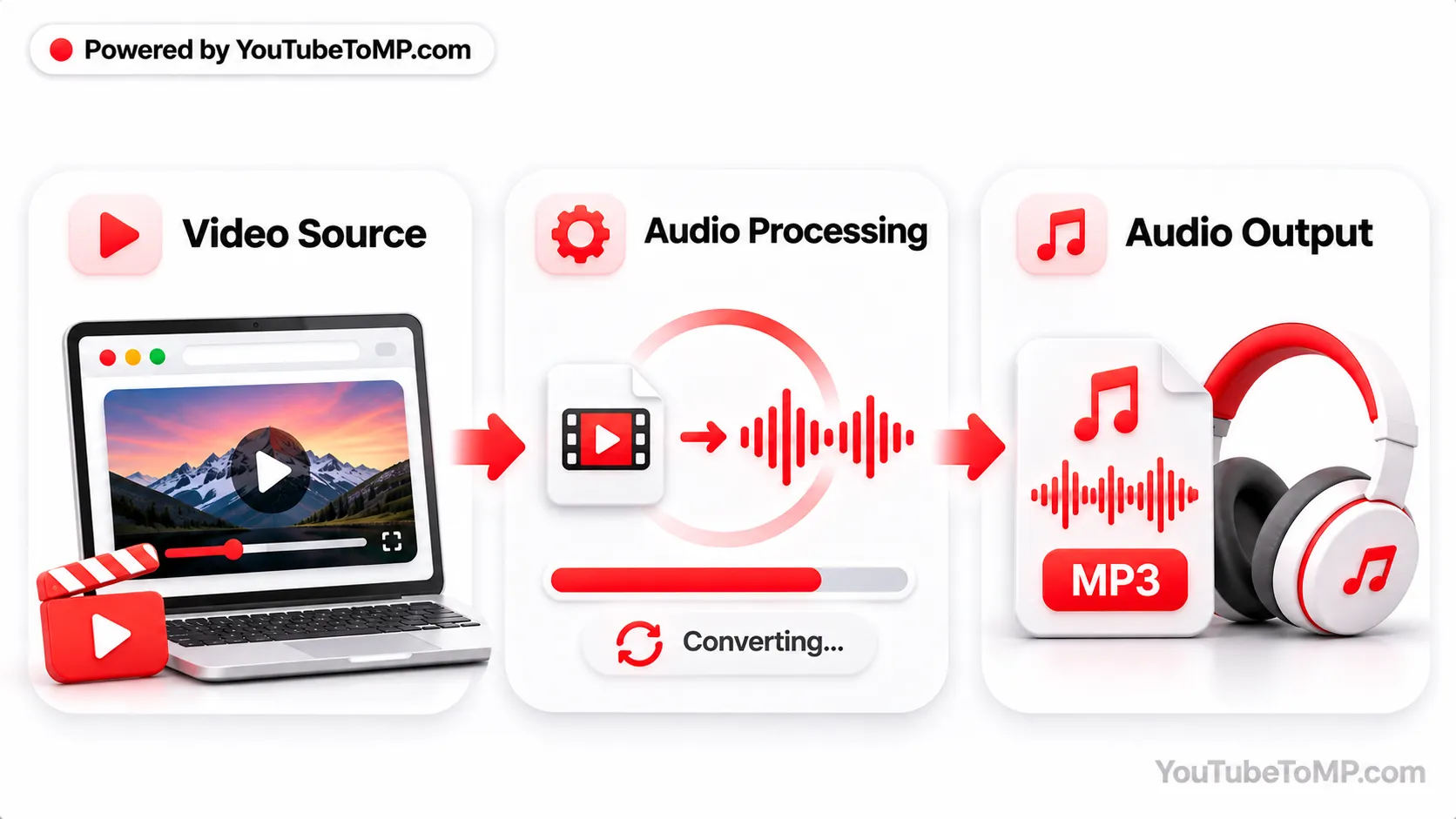
YouTubeToMP is an online YouTube-to-MP3 conversion tool designed to make the conversion experience accessible through a browser. Rather than installing a desktop application for every simple task, users can visit the website and explore its available conversion options.
The homepage provides the main entry point to the tool. If you are comparing online converters, pay attention to the available output options, whether the interface clearly explains the process, and whether the service asks for unnecessary permissions or software installations.
An online tool should also be transparent about how it handles user information and files. Avoid submitting private recordings or confidential material to a service unless you understand its privacy practices.
YouTubeToMP is intended as a conversion utility, not a place to publish or host videos. Users should still make sure their use of any source content complies with the applicable platform terms, copyright permissions, and local laws. You can visit the YouTubeToMP homepage to see the available tool and its current options.
Copyright and Permission Matter More Than the Conversion Format
A video being publicly available does not mean its audio is free to download, copy, or distribute. A creator may own the narration, music, performance, or other material contained in the recording. Extracting the sound does not remove those rights.
YouTube's Terms of Service restrict downloading or otherwise using content except where the service specifically permits it, where the relevant rights holders have given permission, or where applicable law allows it. This is why the intended use and the source of the recording matter.
If you uploaded the video yourself, have permission from the creator, or are working with material covered by a suitable licence, you have a clearer basis for creating a separate audio file. If you plan to reuse the recording in a podcast, advertisement, social media post, or commercial project, check that your permission covers that use as well.
Personal use does not automatically make every download lawful or permitted by the platform. Copyright rules and exceptions differ between countries, and a situation that qualifies for an exception in one place may not qualify in another.
There is also a practical privacy consideration. A recording may contain a private conversation or someone's personal information. Before uploading it to a third-party service or sharing the resulting audio, consider whether you have permission to do so.
When a Separate YouTube Audio File Is Useful
A separate audio recording can be useful when the spoken content matters more than the visuals. Someone reviewing a lecture may want to listen to the explanation again without opening the video. A professional with permission to use a recorded presentation may prefer an audio version for reviewing key points or preparing a transcript.
Creators working with their own material may also separate narration from video footage before editing. This gives them more flexibility to adjust sound levels, remove unwanted sections, or prepare an audio version for another format.
The same applies to interviews and recorded discussions. An audio file can be easier to organize and process with transcription software, particularly when the conversation is long. It can also be more convenient to play on devices with limited storage.
Before deleting or moving the original video, check the finished audio. Listen to the beginning and end, confirm that the important sections are present, and make sure the file plays correctly on your intended device. Keeping the source recording is useful if you later need the visual context or want to produce another version.
The important part is choosing the right source, method, and format. You do not need a complicated workflow for every recording. When you have permission to use the material and a suitable file or authorized method, extracting audio can make the content easier to listen to, organize, and work with.